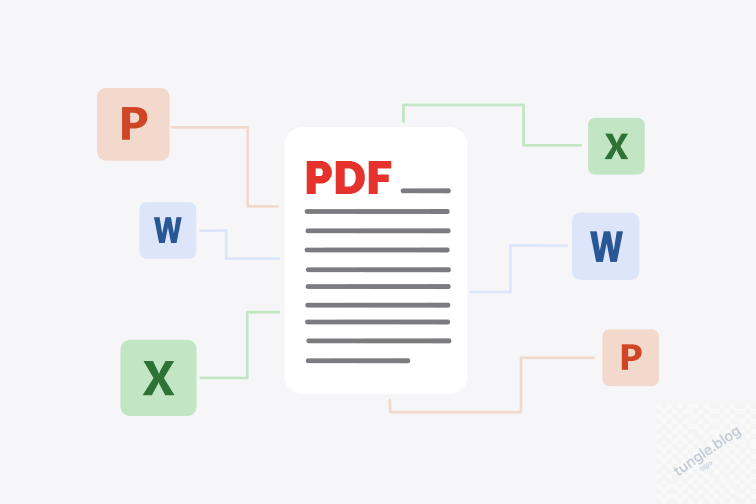
Bài viết này hướng dẫn cách convert Office sang PDF trên Linux bằng cách xây dựng một API service nhỏ gọn với LibreOffice headless, Flask và Docker — chạy ổn định trên server, dễ tích hợp vào backend hoặc pipeline OCR.
Bối cảnh thực tế: khi xử lý OCR file Word/Excel/PowerPoint chứa ảnh nhúng, bước bắt buộc là phải convert sang PDF trước rồi mới OCR được. Trên Windows có docx2pdf, win32com hỗ trợ sẵn, nhưng khi hệ thống chạy trên Linux (server, container, CI/CD) thì cần giải pháp khác. LibreOffice headless là lựa chọn thực tế nhất.
Khi Nào Nên Dùng Giải Pháp Convert Office Sang PDF Này?
Giải pháp này phù hợp cho:
- Hệ thống nội bộ, backend hoặc microservice
- Tải nhẹ đến trung bình (~10 file/phút)
- Yêu cầu layout gần giống Windows (có xử lý font tiếng Việt)
Không phù hợp cho hệ thống tải cao trên 30 file/phút hoặc real-time quy mô lớn.
Luồng xử lý tổng quan:
|
1 2 3 4 5 6 7 8 9 10 11 12 13 |
Client | | HTTP POST /convert v Flask API (Gunicorn) | | gọi soffice --headless v LibreOffice | v PDF |
Tính Năng Chính Của Service Convert Office Sang PDF
- Hỗ trợ hầu hết định dạng Office mà LibreOffice đọc được: .docx, .xlsx, .pptx, .odt, .csv, .html…
- Giới hạn số process LibreOffice chạy song song — tránh treo server
- Mỗi request dùng profile LibreOffice riêng biệt — tránh crash do xung đột
- Có timeout khi convert, tự động cleanup file tạm
- Dễ build và deploy bằng Docker
Cấu trúc project:
|
1 2 3 4 5 6 |
. ├── app.py ├── Dockerfile ├── docker-compose.yml └── fonts/ (tuỳ chọn – font Windows) |
Nội Dung File app.py — Flask API Convert Office Sang PDF
|
1 2 3 4 5 6 7 8 9 10 11 12 13 14 15 16 17 18 19 20 21 22 23 24 25 26 27 28 29 30 31 32 33 34 35 36 37 38 39 40 41 42 43 44 45 46 47 48 49 50 51 52 53 54 55 56 57 58 59 60 61 62 63 64 65 66 67 68 69 70 71 72 73 74 75 76 77 78 79 80 81 82 83 84 85 86 87 88 89 90 91 92 93 94 95 96 97 98 99 100 101 102 103 104 105 106 107 108 109 110 111 112 113 114 115 116 117 118 119 120 121 122 123 124 125 126 127 128 129 130 131 132 133 134 135 136 137 138 139 |
import os import uuid import time import threading import subprocess from pathlib import Path from flask import Flask, request, send_file, abort # ===================== # CONFIG # ===================== APP_PORT = 5000 # Đổi port nếu muốn TEMP_DIR = "/app/tmp" MAX_UPLOAD_MB = 50 # Giới hạn dung lượng file, tránh treo máy SOFFICE_TIMEOUT = 180 MAX_CONCURRENT_CONVERT = 2 # Tăng nếu máy mạnh hơn CLEANUP_INTERVAL = 3600 FILE_MAX_AGE = 3600 # Các định dạng LibreOffice hỗ trợ ALLOWED_EXTENSIONS = { ".doc", ".docx", ".odt", ".rtf", ".xls", ".xlsx", ".ods", ".csv", ".ppt", ".pptx", ".odp", ".txt", ".html", ".xml" } # ===================== # INIT # ===================== app = Flask(__name__) app.config["MAX_CONTENT_LENGTH"] = MAX_UPLOAD_MB * 1024 * 1024 os.makedirs(TEMP_DIR, exist_ok=True) convert_semaphore = threading.Semaphore(MAX_CONCURRENT_CONVERT) # ===================== # HEALTH CHECK — dùng khi monitor # ===================== @app.route("/", methods=["GET"]) def health(): return "OK" # ===================== # CONVERT ROUTE # ===================== @app.route("/convert", methods=["POST"]) def convert(): if "file" not in request.files: abort(400, "Missing file") upload = request.files["file"] if upload.filename == "": abort(400, "Empty filename") ext = Path(upload.filename).suffix.lower() if ext not in ALLOWED_EXTENSIONS: abort(400, f"Unsupported file type: {ext}") file_id = uuid.uuid4().hex input_path = f"{TEMP_DIR}/{file_id}{ext}" output_path = f"{TEMP_DIR}/{file_id}.pdf" lo_profile = f"file:///tmp/lo_{file_id}" try: upload.save(input_path) cmd = [ "soffice", "--headless", "--nologo", "--nofirststartwizard", f"-env:UserInstallation={lo_profile}", "--convert-to", "pdf", input_path, "--outdir", TEMP_DIR ] with convert_semaphore: proc = subprocess.run( cmd, stdout=subprocess.PIPE, stderr=subprocess.PIPE, timeout=SOFFICE_TIMEOUT ) if proc.returncode != 0: print("LibreOffice stdout:\n", proc.stdout.decode()) print("LibreOffice stderr:\n", proc.stderr.decode()) abort(500, "Convert failed") if not os.path.exists(output_path): abort(500, "PDF not generated") return send_file( output_path, mimetype="application/pdf", as_attachment=True, download_name=f"{Path(upload.filename).stem}.pdf" ) except subprocess.TimeoutExpired: abort(504, "LibreOffice timeout") finally: for p in [input_path, output_path]: if os.path.exists(p): os.remove(p) # ===================== # CLEANUP # ===================== def cleanup_worker(): while True: time.sleep(CLEANUP_INTERVAL) now = time.time() for f in os.listdir(TEMP_DIR): p = os.path.join(TEMP_DIR, f) try: if os.path.isfile(p) and now - os.path.getmtime(p) > FILE_MAX_AGE: os.remove(p) except Exception as e: print("Cleanup error:", e) # ===================== # START # ===================== if __name__ == "__main__": if subprocess.call(["which", "soffice"], stdout=subprocess.DEVNULL) != 0: raise RuntimeError("LibreOffice not installed") threading.Thread(target=cleanup_worker, daemon=True).start() app.run(host="0.0.0.0", port=APP_PORT, threaded=True) |
Dockerfile — Cài LibreOffice và Font
LibreOffice trong Docker mặc định thiếu font, dễ gây mất dấu tiếng Việt hoặc sai layout so với Windows. Dockerfile dưới đây cài sẵn các font thông dụng bao gồm Noto CJK để xử lý tiếng Việt.
|
1 2 3 4 5 6 7 8 9 10 11 12 13 14 15 16 17 18 19 20 21 22 23 24 25 26 27 28 29 30 |
FROM python:3.11-slim ENV DEBIAN_FRONTEND=noninteractive RUN apt-get update && apt-get install -y \ libreoffice \ libreoffice-writer \ libreoffice-calc \ libreoffice-impress \ fonts-dejavu \ fonts-liberation \ fonts-noto \ fonts-noto-core \ fonts-noto-cjk \ fontconfig \ && rm -rf /var/lib/apt/lists/* WORKDIR /app COPY app.py . RUN pip install flask gunicorn RUN mkdir -p /app/tmp /tmp RUN fc-cache -f -v EXPOSE 5000 CMD ["gunicorn", "-w", "2", "-t", "180", "-b", "0.0.0.0:5000", "app:app"] |
docker-compose.yml
|
1 2 3 4 5 6 7 8 9 10 11 |
version: "3.9" services: office-convert: build: . ports: - "5000:5000" restart: unless-stopped tmpfs: - /tmp |
Build và chạy service
|
1 2 |
docker compose up -d --build |
Test API
|
1 2 3 4 5 6 7 8 |
curl -X POST http://localhost:5000/convert \ --output result.pdf curl -X POST http://localhost:5000/convert \ --output slides.pdf |
Xử Lý Font Windows (Times New Roman, Arial…)
Nếu tài liệu dùng font Windows, cần copy font vào image để giữ đúng layout khi convert Office sang PDF:
- Copy file .ttf từ thư mục C:\Windows\Fonts trên máy Windows
- Đặt vào thư mục fonts/ trong project
- Thêm lệnh COPY vào Dockerfile và chạy lại fc-cache -f -v để rebuild font cache
Lưu ý bản quyền font — chỉ nên dùng cho hệ thống nội bộ, không phân phối image công khai kèm font Windows.
Giới Hạn Cần Biết
- Không hỗ trợ file có password
- Không chạy macro VBA
- Animation trong PowerPoint sẽ render tĩnh
- Không phù hợp tải cao trên 30 file/phút
Tổng Kết
Với stack LibreOffice + Flask + Docker, bạn có ngay một service convert Office sang PDF chạy hoàn toàn trên Linux, không phụ thuộc Windows hay bất kỳ dịch vụ cloud nào. Đây là nền tảng tốt để mở rộng thêm các tính năng như OCR bằng pytesseract, convert ngược PDF sang Office, hoặc xếp hàng xử lý với Redis/RabbitMQ khi cần tải lớn hơn.
Tham khảo thêm các bài viết kỹ thuật tại tungle.blog, chuyên mục Thủ thuật, hoặc xem thêm bài liên quan đến xử lý file tự động.
Tài liệu chính thức LibreOffice headless tại wiki.documentfoundation.org.
Bạn đang dùng giải pháp nào để convert Office sang PDF trên server? Hay bạn gặp vấn đề gì với font tiếng Việt khi chạy LibreOffice trong Docker? Để lại bình luận bên dưới — tôi rất muốn nghe!